
Plan the Next Sprint
Build a backlog, set a sprint goal, and bring the right work into focus. Parent items and dependencies make the relationship between steps explicit.
Project & Team Management
Keep the plan, the people, and the next step in the same place.
From a small team’s daily work to a launch with a hundred moving parts, Well gives everyone a clear view of what matters—and room to get it done.
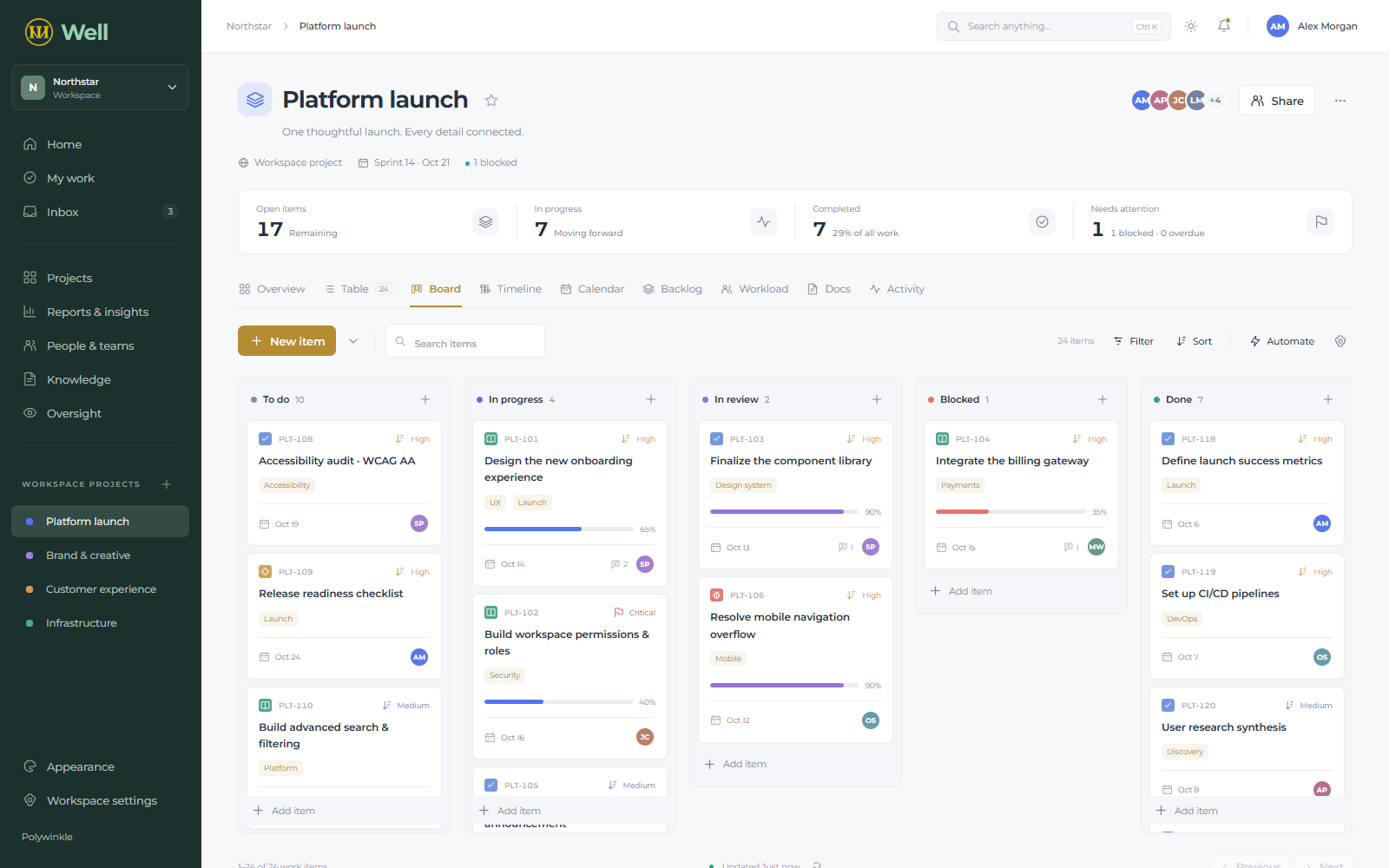
Work rarely stays in a neat list. There are decisions to record, deadlines to watch, and people waiting on other people.
Well connects those details to the work itself. Keep tasks, conversations, estimates, documents, and dependencies together, then choose the view that helps you move forward.
Use a table when you need the detail. Switch to a board to follow progress, a calendar to check dates, or a timeline to see how the plan fits together. It’s the same project, without rebuilding it for each conversation.
Group work by stage, filter what’s relevant, and save useful views. Custom fields keep the details that matter to your team alongside the essentials.
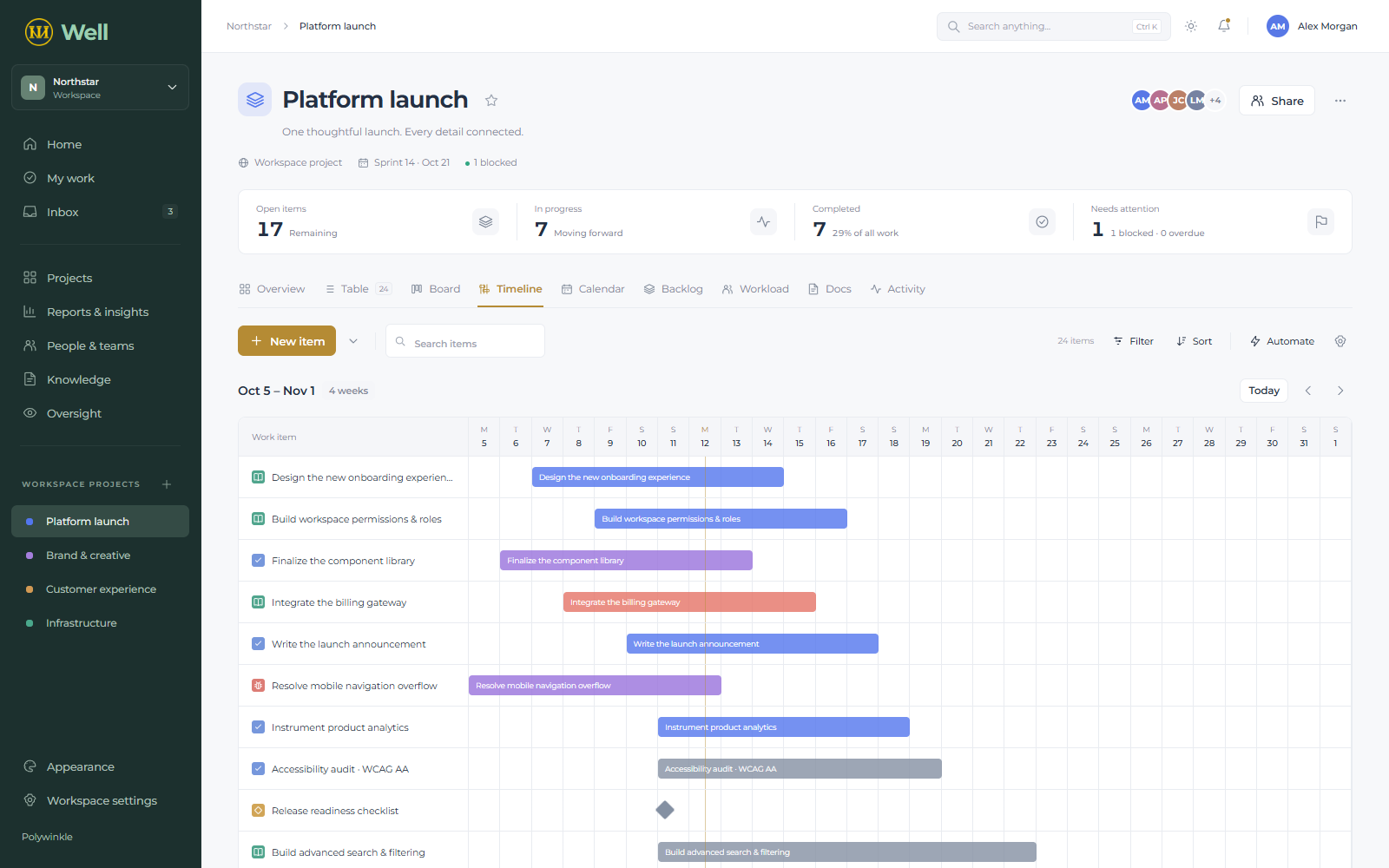
Build a backlog, set a sprint goal, and bring the right work into focus. Parent items and dependencies make the relationship between steps explicit.
Track effort, completion, and time spent. Add comments and mention teammates where a decision is needed, with notifications that follow their preferences.
Set allowed status transitions and work-in-progress limits. Status-triggered rules can move work to a group, adjust priority, update progress, or notify its assignee.
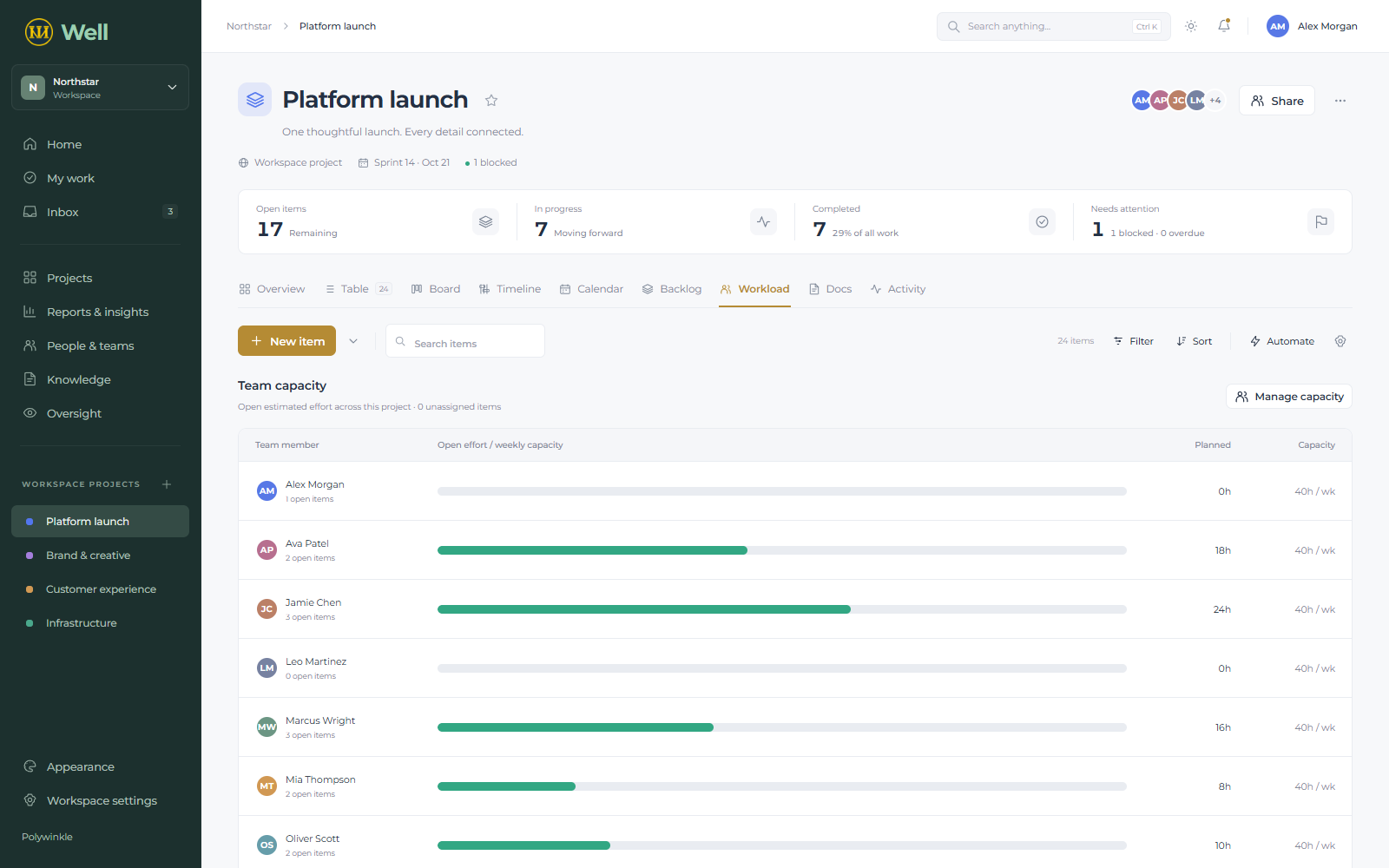
Keep several projects in one workspace and see the wider picture. Compare each person’s open estimated effort with their weekly capacity before assigning more work.
Teams make access easier to organize. Private projects and resource-specific permissions let a contributor see what they need without opening everything else.
Project notes, shared knowledge, and decisions belong somewhere the team can find them again. Write documents in the workspace, connect them to a project, and search them alongside work items and people.
Activity history records important changes and the person behind them. Oversight brings role assignments, access rules, and request history together for authorized leaders.
Import task lists from CSV or export project records for a spreadsheet. Choose your appearance, density, visible columns, and shortcuts without changing anyone else’s workspace.
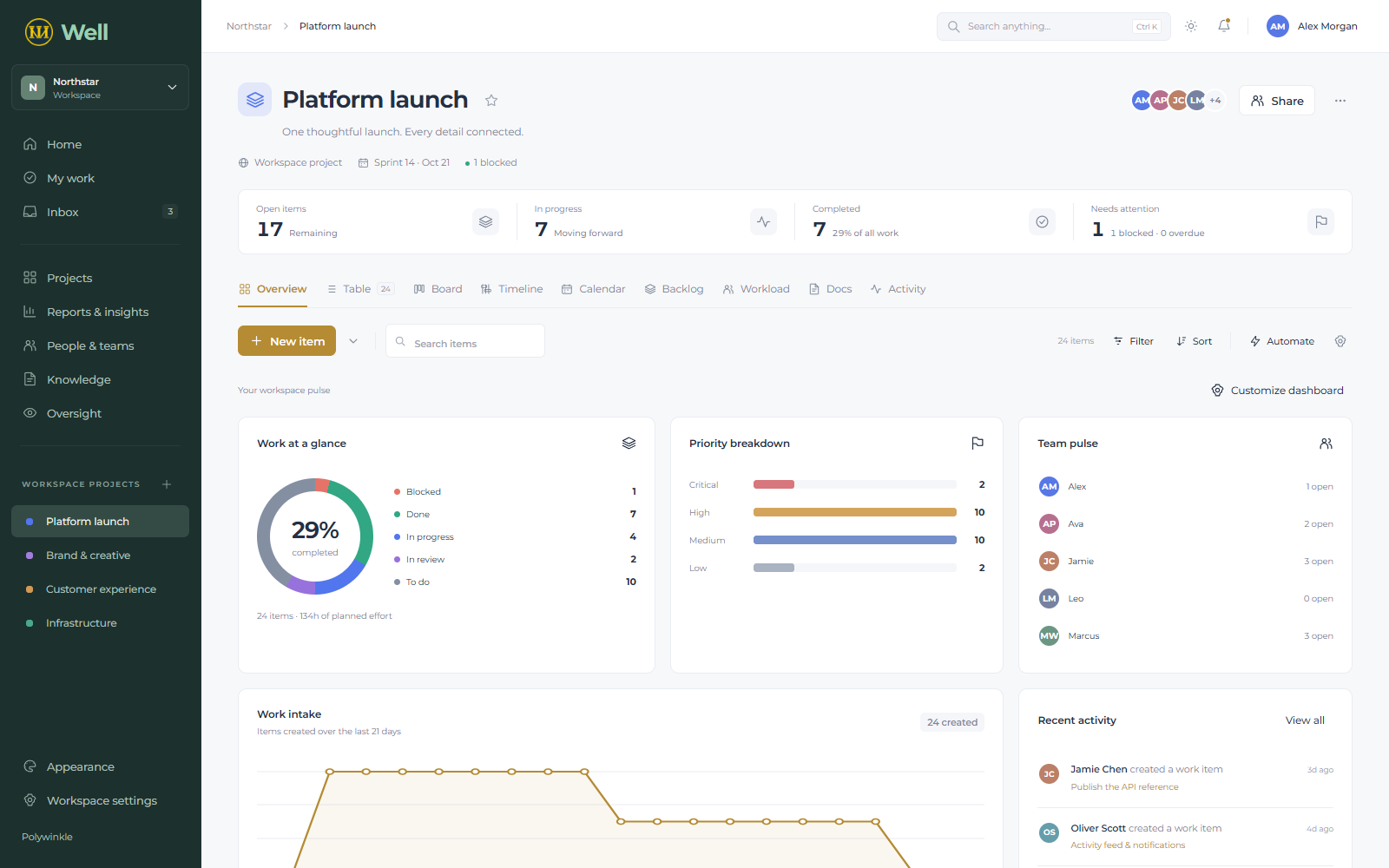
A project overview brings status, priorities, teams, and recent changes into one view. Workspace reports give you the broader picture across the projects you can access.
Hide widgets you don’t need and arrange the ones you do. When a number needs explaining, open the underlying work instead of chasing an update in another tool.
Open your workspace, bring your team, and start with the next thing that needs doing.
Teams coordinating projects, creative work, product development, and daily operations. Start with a simple list or use the board, sprint, timeline, and permission tools as your work grows.
Yes. A Polywinkle account can join several workspaces. Each workspace has its own projects, people, roles, documents, and preferences.
No. Workspace roles, private projects, and resource-specific rules control access. Workspace administrators retain recovery access, so consider that when deciding where to keep sensitive information.
CSV import supports up to 100 work items per batch. Project export includes all accessible matching work items, not just the current page.
Well refreshes while the workspace is visible and idle. This is periodic refresh, not live presence or chat. Conflicting edits are checked before shared records are saved.
Read the field guide, open a support ticket, or suggest a feature. If your team needs a particular workflow, tell us what you’re trying to accomplish.